
Want faster page loads? Focus on LCP (Largest Contentful Paint). It measures how quickly the largest visible element (like an image or heading) loads. Google expects an LCP under 2.5 seconds for 75% of visits, and failing this can hurt both user experience and search rankings.
Here’s the deal:
- Images: They’re the LCP element on 73% of mobile pages. Optimize with formats like WebP, preload key images, and avoid lazy-loading the LCP image.
- Fonts: Use
font-display: swapto prevent invisible text. Preload critical fonts and subset them to reduce file sizes. - CSS: Inline critical styles, remove unused CSS, and preload non-critical styles to cut delays.
Want proof? Tokopedia improved its LCP by 55% and saw session durations increase by 23%. Optimizing these three areas can make your site faster and boost conversions.
1. Images
Impact on LCP
Images are a major factor in Largest Contentful Paint (LCP) performance because they often represent the primary visual element users see. In fact, on mobile pages, images account for the LCP element 73% of the time, and this figure climbs to 90% for web applications. The challenge? Images require separate requests and downloads, which can slow things down significantly.
For websites with poor LCP performance, the median wait time to even start downloading an image is 1.3 seconds. That’s nearly four times longer than the actual download time of 350ms.
"The median site with poor LCP spends almost four times as long waiting to start downloading the LCP image as it does actually downloading it."
– Brendan Kenny, Google
Optimization Techniques
Improving image performance isn’t just about reducing file size – it’s about ensuring images are discovered and prioritized early. For instance, adding the fetchpriority="high" attribute to your LCP image signals browsers to prioritize it, potentially cutting LCP by 300ms to 800ms. Similarly, using a <link rel="preload"> tag in the HTML head ensures faster discovery for images defined in CSS or loaded via JavaScript.
Switching to modern image formats like WebP and AVIF can also make a big difference. WebP reduces file sizes by 25% to 35% compared to JPEG, while AVIF achieves reductions of roughly 50%. For example, in February 2026, Rankture optimized a 2.4MB JPEG hero image into a 180KB WebP. This 92% reduction improved their homepage LCP from 3.8 seconds to 2.1 seconds on 3G mobile connections.
Avoid certain practices, like applying loading="lazy" to an LCP image, as it delays loading. Instead, use responsive images with srcset and sizes attributes and specify explicit width and height to prevent layout shifts.
Implementation Complexity
Some optimizations are straightforward. For example, adding fetchpriority="high" is a simple HTML tweak. Converting images to WebP or AVIF manually is moderately complex, but automated tools like Image CDNs make this easier.
More advanced techniques, such as responsive preloading, require precise coordination. Preload attributes like imagesrcset and imagesizes must match the <img> tag exactly, which can be tricky. In some cases, server-side rendering changes or using a CDN as a reverse proxy may be necessary to address connection issues.
An audit conducted by Arjen Karel in early 2026 uncovered a case of "Accidental LCP" on a category page. A lazy-loaded product image became the LCP candidate due to the absence of descriptive text above the fold. This delayed load times by several seconds. The fix? Adding a text-based headline above the fold, which became the new, faster LCP candidate.
Performance Gains
Optimizing images doesn’t just improve performance – it drives measurable business outcomes. For instance, in early 2025, Vodafone improved their LCP by 31%, which led to an 8% increase in total sales. Similarly, Agrofy achieved a 70% LCP improvement, resulting in a 76% reduction in load abandonment.
When selecting image formats, it’s important to weigh the trade-offs. AVIF offers better compression but can be CPU-intensive, leading to slower rendering on mobile devices. WebP, on the other hand, strikes a balance with faster decoding and broader browser support (around 95%) compared to AVIF (approximately 92%).
Up next, we’ll explore how optimizing fonts can further enhance LCP performance.
sbb-itb-7a4ada9
2. Fonts
Impact on LCP
When text is the main content in your viewport – like a hero heading or a main title – web fonts play a big role in Largest Contentful Paint (LCP). This is especially relevant since 26% of mobile pages have text as their largest visible element. However, custom fonts can cause delays. Browsers sometimes hide text for up to 3 seconds while waiting for a font to load, leading to a Flash of Invisible Text (FOIT). During this delay, the LCP element isn’t recorded, which can significantly hurt your performance scores.
The root issue lies in how browsers process fonts. They don’t realize a font is needed until the HTML is parsed and the CSS is downloaded, which creates a discovery delay.
Optimization Techniques
To prevent FOIT, use font-display: swap. This tells browsers to render text immediately with a fallback font, ensuring LCP is measured without waiting. This simple adjustment can improve LCP performance by about 15%.
For fonts that are critical and appear above the fold, use <link rel="preload"> in your HTML head. This makes sure fonts begin loading alongside other initial resources, skipping the wait for CSS parsing. Additionally, self-hosting fonts eliminates extra DNS lookups and reduces connection delays. After preloading, you can further optimize by subsetting fonts to include only the necessary characters. Shopify found that using Early Hints to load fonts earlier made LCP 500ms faster for their merchants in 2024.
Subsetting fonts – removing unused characters – can drastically shrink file sizes. For example, reducing the Montserrat font to just essential characters cut its size from 64.6KB to 15KB, a 76% reduction. Using the WOFF2 format exclusively can also reduce font file sizes by about 30%, while maintaining compatibility with modern browsers.
"Use only WOFF2 and forget about everything else… This will simplify your CSS and workflow massively and also prevents any accidental double or incorrect font downloads."
– Bram Stein, 2022 Web Almanac
Implementation Complexity
Making these changes varies in difficulty. Adding font-display: swap to your CSS is simple – it’s just one line of code. Preloading fonts involves adding a <link> tag to your HTML head, which is also easy. Self-hosting fonts requires downloading the font files and updating your CSS @font-face rules. This takes more effort but provides greater control.
Subsetting fonts, on the other hand, can be more time-consuming. Tools like glyphhanger or subfont help, but the process becomes trickier for multilingual sites or those with large character sets. For the easiest solution, you can use system font stacks (system-ui), which require no downloads and render instantly. However, this approach sacrifices custom typography for speed.
Performance Gains
Optimizing web fonts can reduce LCP by up to 40% and cut delays by around 300ms. For example, Cloudflare users reported a 30% improvement in LCP after implementing Early Hints. For sites where text is the LCP element, proper font optimization can mean the difference between meeting "good" Core Web Vitals thresholds or falling short.
The choice of font-display values also matters. For instance, font-display: optional limits the font loading window to 100ms. If the font doesn’t load in time, the browser sticks with the fallback font, avoiding layout shifts. This is ideal for non-critical text where performance takes priority over perfect typography.
Next, we’ll dive into how CSS impacts LCP performance even further.
3. CSS
Impact on LCP
CSS plays a significant role in influencing LCP by delaying rendering. Since CSS blocks rendering until it’s fully downloaded and parsed, it can create a bottleneck that directly affects LCP performance. Large CSS files – anything over 50KB – can significantly delay both resource discovery and the final rendering process.
One critical metric to monitor is the delay between downloading an LCP resource and its actual rendering on-screen. Ideally, this delay should be less than 10% of the total LCP time, which translates to roughly 0.25 seconds. Unfortunately, websites with poor LCP performance often exhibit an average Time to First Byte (TTFB) of 2,270ms, consuming almost the entire 2.5-second LCP budget before CSS or images even start loading.
"A large delta between TTFB and FCP could indicate that the browser needs to download a lot of render-blocking assets." – web.dev
Optimization Techniques
Improving CSS performance is just as important as optimizing images and fonts when aiming for better LCP scores. One of the most effective strategies is inlining critical CSS, which involves extracting the styles required for above-the-fold content and embedding them in a <style> tag within the document’s <head>. Keeping inlined critical CSS under 14KB ensures it fits within the first TCP packet, allowing the browser to immediately render the LCP element without waiting for external requests.
Here are additional techniques to optimize CSS:
- Preload non-critical CSS: Use the following code to load styles asynchronously:
<link rel="preload" href="style.css" as="style" onload="this.onload=null;this.rel='stylesheet'">This ensures non-critical styles don’t block the initial paint.
- Remove unused CSS: Use Chrome DevTools’ Coverage tab to identify and eliminate redundant styles. This can lead to an average LCP reduction of 19.66%.
- Minify and compress CSS: Tools like Brotli or Gzip can shrink file sizes, speeding up delivery.
- Avoid
@importin CSS files: This practice creates a serial request chain, delaying stylesheet discovery. - Optimize for LCP elements: Use
<img>tags withfetchpriority="high"instead of relying on CSSbackground-image: url()for LCP-critical images. Background images aren’t easily discoverable by the browser’s preload scanner.
Implementation Complexity
The complexity of CSS optimization varies depending on the technique. For example, minification and compression are straightforward tasks that can be implemented in minutes, while inlining critical CSS is moderately complex and may require several hours. Tools like critical or penthouse in Node.js can help automate this process.
On the other hand, removing unused CSS is more challenging and can take hours or even days, especially for larger websites with multiple templates. While this process can be time-intensive, automated tools can simplify much of the work when configured correctly.
Performance Gains
The performance improvements from CSS optimization can be substantial. For example, implementing critical CSS can improve LCP scores by 35% to 60% and reduce initial page load times by up to 40%. In optimized scenarios, inlining critical CSS can bring LCP times down from several seconds to under 500ms.
| Optimization Technique | Impact on LCP | Implementation Difficulty | Estimated Fix Time |
|---|---|---|---|
| Minify CSS | Medium | Low | Minutes |
| Remove Render-Blocking CSS | High | Medium | Hours |
| Remove Unused CSS | Medium | High | Hours to Days |
| Inline Critical CSS | High | Medium | Hours |
Since LCP contributes 25% to the total Lighthouse Performance Score, optimizing CSS is essential for improving overall site performance. Start with quick wins like minifying CSS before diving into more complex tasks like extracting critical CSS.
A deep dive into optimizing LCP
Comparison: Pros and Cons
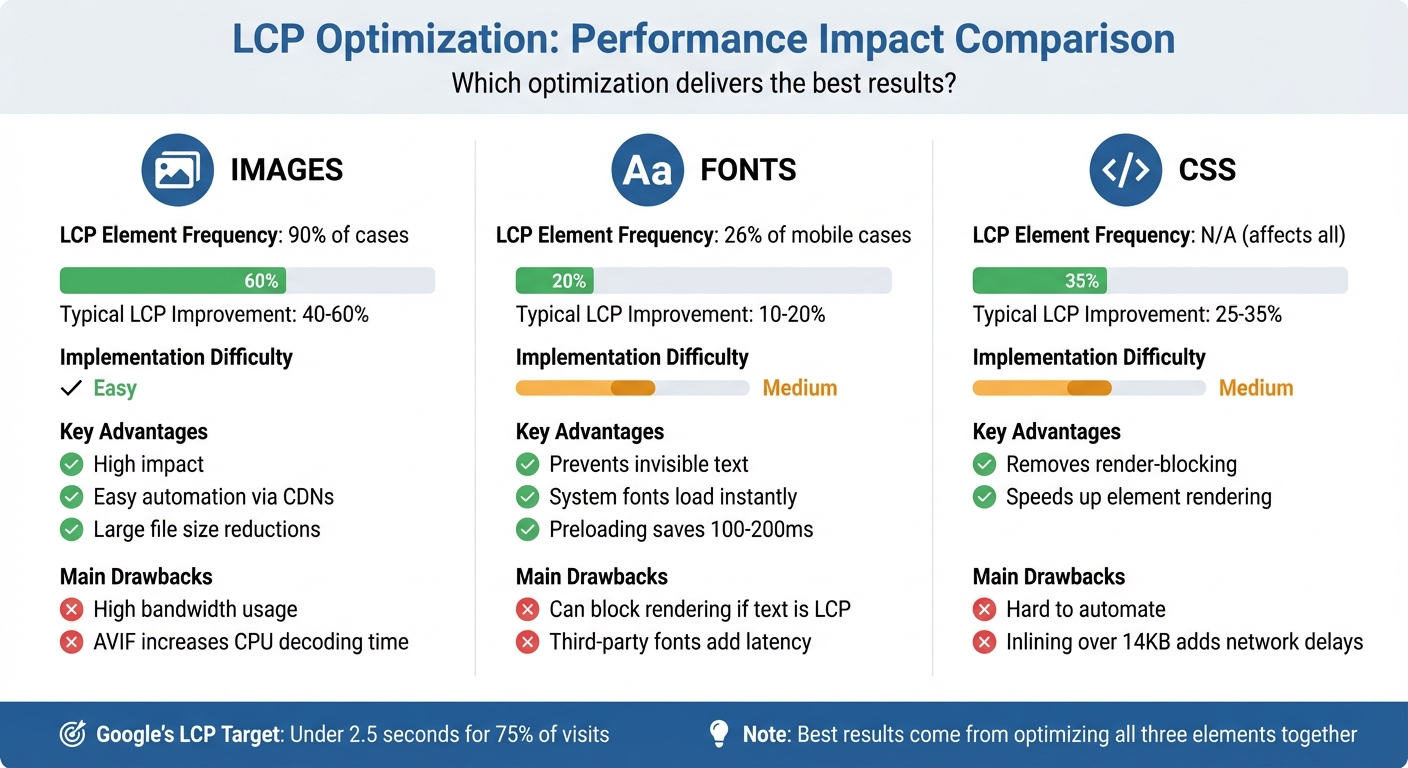
LCP Optimization Comparison: Images, Fonts, and CSS Performance Impact
Building on the earlier breakdown of images, fonts, and CSS, let’s dive into a comparison of the advantages and challenges each optimization method brings.
Each technique offers distinct benefits but comes with its own set of hurdles. Images tend to have the most significant impact since they account for the LCP element in about 90% of cases. Converting images to modern formats like AVIF can dramatically reduce file sizes, but it may come at the cost of higher CPU usage during decoding. This creates a trade-off between faster downloads and increased processing demands.
CSS optimization, on the other hand, is a powerful way to eliminate render-blocking delays, potentially improving LCP scores by 25% to 35%. However, extracting critical CSS isn’t straightforward – it requires technical expertise and must be revisited whenever your site’s layout changes. Plus, inlining too much CSS (over 14KB) can lead to additional network requests, which diminishes the gains.
When it comes to font optimization, it’s particularly useful for preventing invisible text and layout shifts. This is especially crucial when text is the LCP element, which happens in about 26% of mobile cases. Once you configure fonts with font-display: swap and preload them correctly, they require very little ongoing maintenance. Fonts, therefore, offer a more hands-off approach once set up.
Here’s a quick comparison of the key points for each LCP element:
| Element | Key Advantages | Main Drawbacks | Typical LCP Improvement | Ease of Implementation |
|---|---|---|---|---|
| Images | High impact; easy automation via CDNs; large file size reductions | High bandwidth usage; AVIF increases CPU decoding time | 40–60% | Easy |
| Fonts | Prevents invisible text; system fonts load instantly; preloading saves 100–200ms | Can block rendering if text is LCP; third-party fonts add latency | 10–20% | Medium |
| CSS | Removes render-blocking; speeds up element rendering | Hard to automate; inlining over 14KB adds network delays | 25–35% | Medium |
For real-world context, companies like Tokopedia and Vodafone have successfully improved both LCP metrics and business outcomes through a website transformation through targeted optimizations. These examples highlight how tailoring strategies to the specific LCP element can yield measurable results.
Conclusion
Optimizing Largest Contentful Paint (LCP) requires a coordinated effort across images, fonts, and CSS. As Philip Walton and Barry Pollard from web.dev explain:
"It’s rare that a quick fix to a single part of a page will result in a meaningful improvement to LCP. To improve LCP, you have to look at the entire loading process and make sure every step along the way is optimized."
This means focusing on the entire loading process to ensure that improvements in one area aren’t undone by bottlenecks elsewhere.
For example, compressing images won’t help LCP if render-blocking CSS remains an issue. Similarly, preloading fonts won’t make a difference if your server response times are slow. Effective LCP optimization requires addressing all components of the loading process together.
The most impactful strategies tackle all four LCP sub-parts: Time to First Byte (TTFB), Resource Load Delay, Resource Load Duration, and Element Render Delay. Real-world examples show that a well-rounded approach delivers measurable results, reinforcing earlier discussions on server speed, resource loading, and render-blocking fixes.
To start, use tools like Chrome DevTools or PageSpeed Insights to identify your LCP element. Then, prioritize optimizations such as applying fetchpriority="high" to your LCP image, inlining critical CSS, and preloading essential fonts with font-display: swap. Keep TTFB under 800 ms by utilizing a CDN and server-side caching. Avoid practices like lazy-loading the LCP image or using animations that delay rendering.
For expert assistance, Upward Engine provides services to audit your site and optimize images, fonts, and CSS. Their team can pinpoint bottlenecks and create a tailored strategy to enhance both your site’s performance and business results.
FAQs
How do I find my page’s LCP element?
To pinpoint your page’s Largest Contentful Paint (LCP) element, you can rely on browser developer tools or specialized performance analysis tools. Here’s how:
- Using Chrome DevTools: Open the "Performance" tab in Chrome DevTools, start recording, and load your page. Once the page finishes loading, stop the recording. Check the timeline to locate the largest element displayed in the viewport.
- Using PageSpeed Insights: This tool simplifies the process by automatically identifying and displaying your LCP element in its report.
Both methods help you determine which element has the most impact on your page’s LCP metric.
Should I preload or lazy-load the LCP image?
Preloading the Largest Contentful Paint (LCP) image is a smart move for improving both performance and user experience. When you preload this image, the browser treats it as a priority, ensuring it loads as quickly as possible. This can lead to better LCP scores, which are a crucial part of Core Web Vitals.
On the other hand, lazy-loading delays the loading of images until they are needed – usually when they come into view. While lazy-loading works well for images further down a page, it’s not ideal for the LCP image. Why? Because the LCP image typically appears above the fold, meaning users see it right away. Any delay in loading this critical element can negatively impact the page’s perceived speed.
By preloading the LCP image, you’re giving the browser a heads-up: “This is important – load it now.” This approach ensures faster visual rendering and a smoother experience for your visitors.
What’s the fastest way to fix render-blocking CSS for LCP?
The fastest way to tackle render-blocking CSS for improving Largest Contentful Paint (LCP) is by extracting and inlining critical CSS, while deferring non-critical CSS. This means pinpointing the CSS needed for above-the-fold content, embedding it directly into the HTML, and loading the remaining styles asynchronously or with media attributes. This approach cuts down render-blocking delays, allowing your page to display content faster and boost LCP performance.


![Shutterstock 2158286203 scaled[1]](https://upwardengine.com/wp-content/uploads/2024/07/shutterstock_2158286203-scaled1-768x538.jpg)